

Vercel 404 Page Error – Easy Fix

Simple Instructions And Copy/Paste Code Snippet Prompt To Fix The Vercel 404 Page Error.

THE 404 ERROR PROBLEM

If you are working with an AI builder, have the code pushed to GitHub, and are using Vercel to host the web app, you might be experiencing this 404 page navigation issue.

Here’s what happened to me, and how I fixed the issue, so you can follow along and hopefully fix the issue as well…

When I tried to use my web app, it worked fine locally, and the home page worked fine after deployment.

The custom domain also worked when I opened the site from inside Vercel.

But there was one big problem…

Any time I tried to visit another page directly, I got a 404 error just like this…
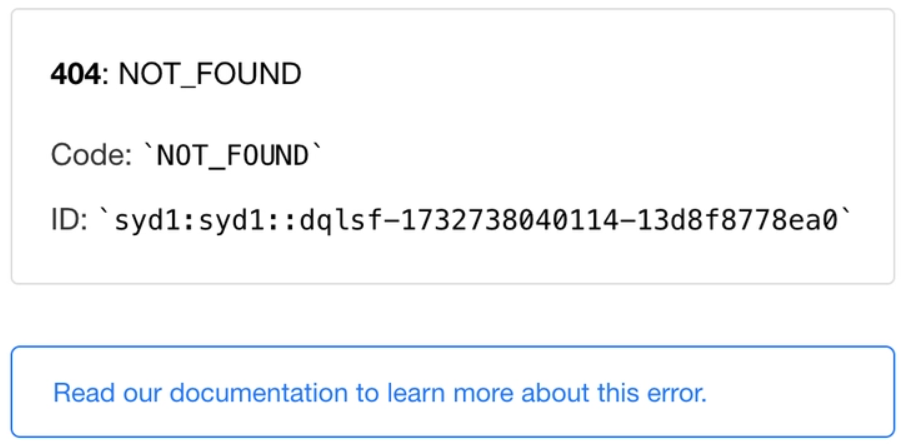
The home page loaded fine at:

/

But pages like these would break:

/dashboard

/settings

/profile

/about

The strange part was that the app seemed to work when I clicked around inside the site.

But if I refreshed the browser on one of those pages, Vercel would show a 404 error.

After spending way too much time searching, testing, and trying to figure out what was wrong, I finally found a simple fix.

All I needed to do was add a small vercel.json file to the project.

That was it.

USE THIS SIMPLE FIX

The fix is actually pretty simple.

You need a file named “vercel.json” with a small code snippet inside that file.

If you are using an AI builder like Lovable, Replit, Bolt, or another similar tool, you do not need to manually create the file yourself.

You can just ask the AI builder to do it for you.

STEP 1: OPEN YOUR AI BUILDER

Open the project inside your AI builder.

This could be Lovable, Replit, Bolt, or another similar tool.

Make sure you are working inside the same project that is connected to GitHub and deployed on Vercel.

STEP 2: COPY THE PROMPT BELOW

Copy this full prompt:

📋
vercel.json
Copy to clipboard
Create a vercel.json file in the root of my project with the following code exactly as is:

{
"rewrites": [
{
"source": "/(.*)",
"destination": "/"
}
],
"buildCommand": "npm run build",
"outputDirectory": "dist"
}

STEP 3: PASTE THE PROMPT INTO YOUR AI BUILDER CHAT

Paste the prompt into your AI builder chat.

Then send it.

The AI builder should create the vercel.json file for you.

It should also add the code exactly as shown.

STEP 4: MAKE SURE THE FILE IS PUSHED TO GITHUB

Your Vercel project is likely connected to GitHub.

That means Vercel needs to see the new vercel.json file in your GitHub repo.

If your AI builder pushes changes to GitHub for you, wait for that to happen.

It may take a few seconds or a few minutes.

STEP 5: WAIT FOR VERCEL TO REDEPLOY

Once the file is pushed to GitHub, Vercel should start a new deployment.

Go to your Vercel dashboard and wait for the deployment to finish.

You DO NOT need to change anything.

Just wait until the new version of your site is live.

STEP 6: TEST THE PAGE THAT WAS BREAKING

Now open one of the pages that was giving you the 404 error.

For example:

yourdomain.com/dashboard

Then refresh the browser.

If the page loads instead of showing a 404 error, the fix worked.

WHAT THE VERCEL.JSON FILE DOES

The vercel.json file gives Vercel special instructions for your project.

The most important part is this:

{
“source”: “/(.*)”,
“destination”: “/”
}

The source part catches all page requests.

That includes pages like:

/dashboard

/settings

/profile

/about

The destination part sends those requests back to:

/

That means Vercel sends the visitor back through the main app instead of trying to find a separate file for each page.

Then your app handles the route and shows the correct page.

IMPORTANT NOTE ABOUT DIST

The code above uses this line:

“outputDirectory”: “dist”

Many projects use dist as the build output folder.

For example, many Vite projects use dist.

But some projects may use a different folder.

Your project might use:

dist

build

out

If your project does not use dist, you may need to change that value.

For many AI builder projects and Vite based projects, dist is usually correct.

If your app already builds fine on Vercel, and the only problem is the 404 error on inner pages, this code will often work as is.

COMMON MISTAKES TO AVOID

MISTAKE 1: USING THE WRONG FILE NAME

The file must be named:

vercel.json

Do not name it:

Vercel.json

vercel.JSON

vercelconfig.json

vercel.txt

The name should be lowercase and exact.

MISTAKE 2: PUTTING THE FILE IN THE WRONG PLACE

The file should be in the root of your project.

If it gets placed inside another folder, Vercel may not use it.

If you are using an AI builder, tell it to place the file in the root of the project.

MISTAKE 3: NOT PUSHING THE FILE TO GITHUB

If your Vercel project is connected to GitHub, Vercel needs the file to be pushed to GitHub.

If the file only exists inside your builder or local project, Vercel may not see it yet.

Make sure the file gets pushed to GitHub.

MISTAKE 4: TESTING TOO SOON

Sometimes it takes a little time for the update to go live.

Wait until Vercel finishes the new deployment.

Then test the site again.

MISTAKE 5: ONLY TESTING THE HOME PAGE

The home page may have already worked before the fix.

Make sure you test the pages that were showing the 404 error.

Try visiting the page directly.

Then refresh the browser.

That is the real test.

FINAL THOUGHTS

The Vercel 404 error can be frustrating because it looks like something major is broken.

But in many cases, the fix is simple.

Create a vercel.json file.

Add the rewrite code.

Push the file to GitHub.

Let Vercel redeploy.

Then test your pages again.

Once the new deployment goes live, you should be able to visit your app pages directly without getting the Vercel 404 error.

This small file can save you a lot of time, especially if your app works locally but breaks after deployment.

Scroll to Top