

If you create images using AI tools such as ChatGPT, Gemini, or other AI image generators, there can be hidden information stored inside the image file that you cannot see.
That hidden information is called “metadata”.
And here is why this matters…
Social Media Platforms Can Automatically Mark Your Post As AI
Social media platforms are increasingly trying to identify images and videos that were created with AI.
Platforms such as Facebook, Instagram, TikTok, and YouTube may automatically add an “AI Info”, “AI-generated”, or similar label to a post when they detect signals showing that AI was used to create or modify the content.
In other words, you may upload an image without manually marking it as AI-generated, and the platform can still identify it.
How?
One of the ways platforms can do this is by reading information stored inside the image file itself.
That information can include:
– AI generation details
– C2PA Content Credentials
– Software information
– EXIF metadata
– Creation information
– Editing information
– Other metadata connected to how the image was produced
So when you upload an AI-generated image, the platform may detect that information and use it as a signal that the image was created with AI.
That can result in an AI Info label being added automatically to your post.
This is the main reason you may want to clean the metadata from an AI-generated image before uploading it.
The Solution: Use ExifReader To Remove The Metadata
A free tool you can use is ExifReader.com.
The site has an “AI Metadata Remover” that lets you find and remove hidden metadata from an image.
The entire process only takes a couple of clicks.
Step 1: Scan
First, let’s see what’s inside the file.
Go to: https://www.exifreader.com/ai-metadata-detector/
Click the upload box and select the image from your computer.
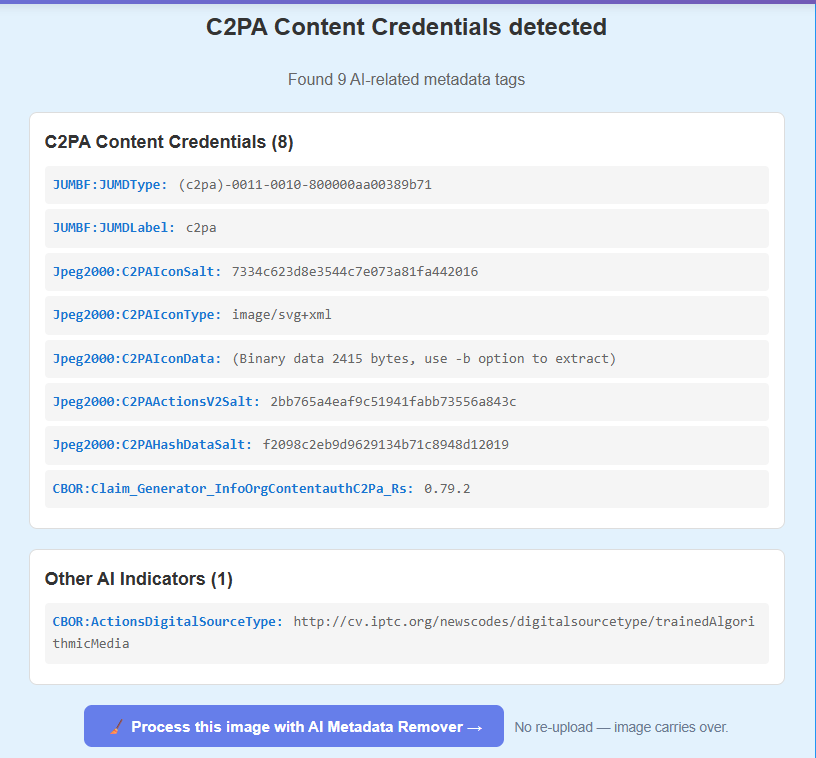
Almost instantly, the site will show you the metadata it finds inside your image. You might be surprised by everything stored inside the file!
Step 2: Clean
Below the metadata results, you will see a button that says:
“Process this image with AI Metadata Remover”
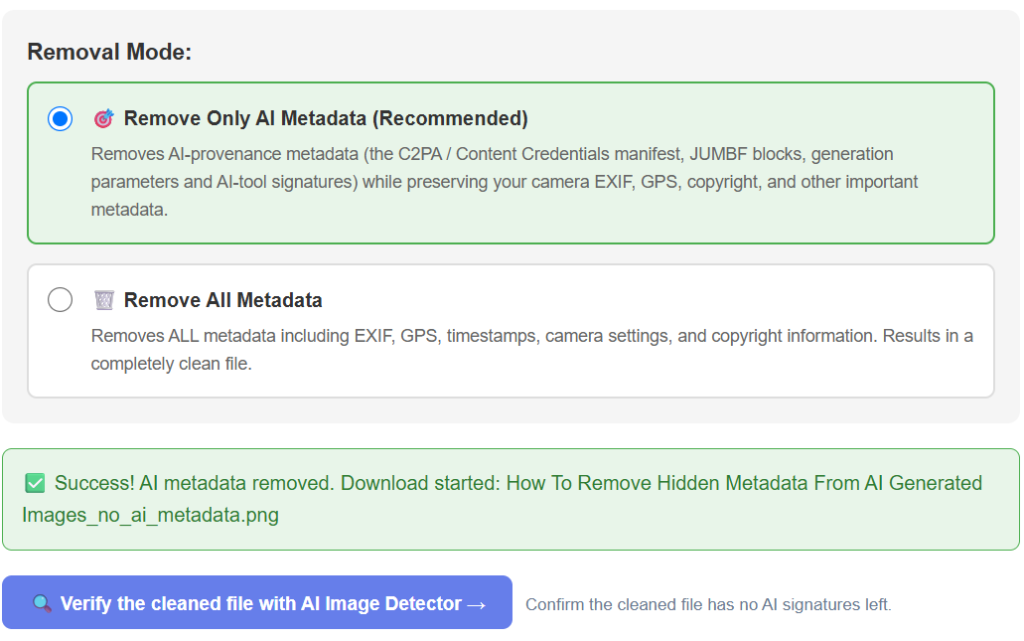
Click that button and the site will immediately remove the metadata from your image, and then automatically download the cleaned image to your computer.
There is no additional download step.
You will see a report showing that the file has been cleaned of the metadata…
Step 3: Verify
Now that you have a cleaned file, you can verify that the metadata was actually removed.
Click the button:
“Verify the cleaned file with AI Image Detector”
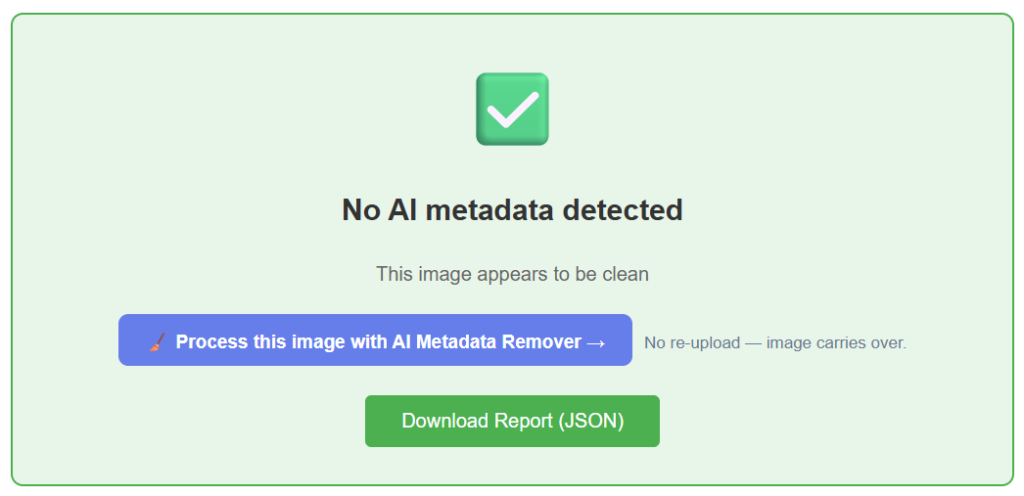
The system will check the cleaned image and show you whether the metadata is gone.
That is it!
Scan. Clean. Verify.
In just a few clicks, you have a clean version of your image without the hidden metadata attached to the original file.
Analyze Images You Purchase Online
Here’s another reason to use ExifReader…
It can also be useful for checking images you receive or purchase from someone else.
For example, suppose you buy graphics, artwork, printables, teaching materials, or other digital images from Etsy, Teachers Pay Teachers, or another marketplace.
If you are curious whether a file contains evidence that it was created using AI, you can upload it to the ExifReader AI Metadata Detector.
If the file still contains AI-generation information, C2PA Content Credentials, or other AI-related metadata, the tool may reveal it.
This can be especially useful if someone specifically claims that an image was not created with AI.
However, there is one important limitation: The person who created the file may have already removed the metadata.
So if the scan finds no AI metadata, that does not prove the image was never created using AI. It simply means that the AI-related metadata you are looking for is not present in the file.
One Important Thing To Know
Removing metadata only removes information stored inside the image file as metadata.
It does not necessarily remove every possible signal that an image was created using AI.
Some AI systems may also use invisible watermarks, pixel-level signals, or other detection methods embedded directly into the image itself.
Those are different from normal metadata and may not be removed by a metadata-cleaning tool.
So this process should be thought of as removing the hidden metadata from the image file, not making an AI-generated image impossible to identify as AI.
If you want to take your file scan a step further, you can use the Meta Content Seal Detector to check if an image carries Meta’s open-source Videoseal / PixelSeal invisible watermark.
Go to https://www.exifreader.com/meta-seal-detector/
Click on the upload box and select the file from your computer.
After the scan you can see if your image is watermarked using the public facebookresearch/videoseal / PixelSeal encoders.
The Bottom Line
AI-generated images can contain hidden metadata that provides information about how the image was created.
Social media platforms may use that information as one of the signals for automatically adding an “AI Info” or similar label to your post.
With ExifReader.com, you can quickly:
1. Scan the image to see what metadata it contains.
2. Clean the image by removing that metadata.
3. Verify that the cleaned file no longer contains it.
The whole process only takes a few clicks.
If you regularly create AI-generated images for social media, it is an easy way to check exactly what information is hiding inside your files and remove the metadata before you upload them.